
Forgot your password or having trouble logging into your account? Follow the simple steps below to reset your password and regain access quickly and securely.
Step 1: Go to the Login Page
Navigate to the login page for your organization or click here https://yourcompany.com/login
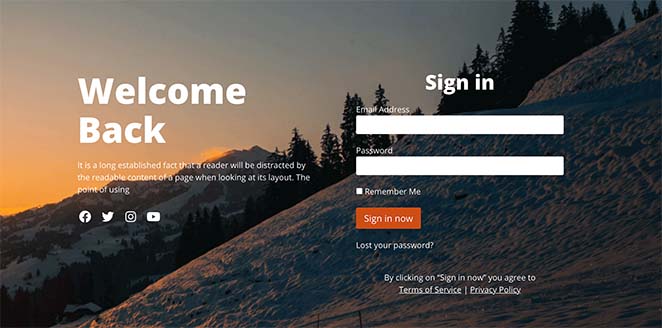
Step 2: Click on "Lost or Forgot your Password?"
On the login form, click the Lost of Forgot your Password? link below the password field.
Step 3: Enter Your Email Address
Provide the email address associated with your Zendesk account and click Send me reset password instructions.

Step 4: Check Your Email
You will receive an email with the subject "Reset your password". If you don’t see the email within a few minutes, check your spam or junk folder.
Note: If you do not receive the email, make sure you entered the correct email address or contact your administrator for assistance.
Step 5: Follow the Password Reset Link
Open the email and click the password reset link provided. This link will direct you to a secure page to create a new password.
Step 6: Create a New Password
- Enter a new password. It should be secure and meet any specified criteria such as length and complexity.
- Confirm the new password by entering it again.
- Click Submit or Change Password.
Step 7: Login with Your New Password
Once your password is successfully reset, return to the login page and use your email and new password to access your Zendesk account.
Troubleshooting Tips
- If the password reset link has expired, simply repeat the process from Step 2 to receive a new link.
- Make sure your new password is strong, using a mix of uppercase and lowercase letters, numbers, and special characters.
- If you continue to experience issues, contact your administrator or support team for further assistance.
Comments
0 comments
Please sign in to leave a comment.